The Team Generator helps you split groups into fair teams instantly. Whether you’re organizing sports teams, classroom groups, or office games, this tool makes random team creation effortless.
Quick Start: Generate Teams in 3 Steps
Step 1: Enter Names
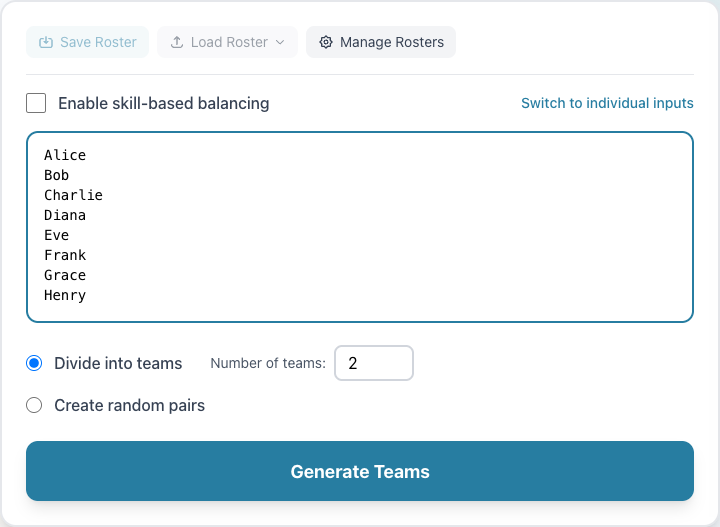
Go to the Team Generator and enter names in the text area, one name per line.
Step 2: Choose Your Settings
Select how you want to divide your group:
- Divide into teams - Specify the number of teams (2-50)
- Create random pairs - Automatically pair people up
Step 3: Generate!
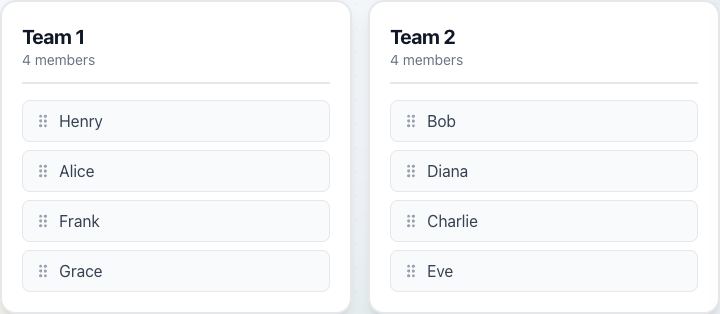
Click the Generate Teams button. Your teams appear instantly below.
Working with Your Teams
Once teams are generated, you have several options:

- Re-shuffle randomly - Generate new random teams with the same people
- Copy teams to clipboard - Copy the team list as text
- Export as CSV - Download teams as a spreadsheet file
You can also drag and drop members between teams to make manual adjustments.
Skill-Based Balancing
For competitive activities, enable skill-based balancing to create fair matchups.
How to Enable
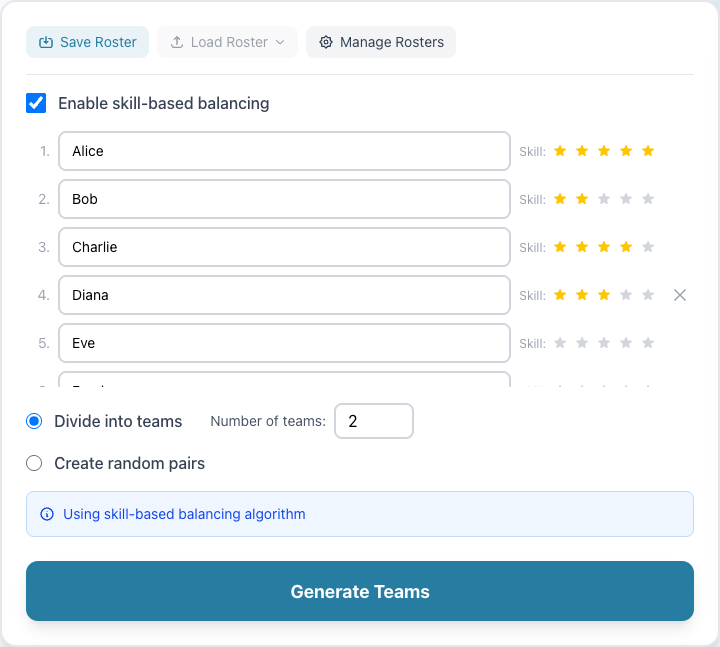
- Check the Enable skill-based balancing box
- The input switches from bulk text to individual entries
- Rate each person’s skill level (1-5 stars)
How It Works
The algorithm distributes players so each team has similar total skill points:
- High-skilled players are spread across teams
- Teams end up with comparable average skill levels
- A balance quality indicator shows how even the teams are
This is perfect for:
- Pickup basketball or soccer games
- Video game tournaments
- Trivia night teams
- Any activity where balanced competition matters
Saving Rosters
Don’t want to re-enter names every time? Use the Roster Manager:
Save a Roster
- Enter all your names (with optional skill ratings)
- Click Save Roster
- Give it a name like “Soccer Club” or “Marketing Team”
Load a Roster
- Click Load Roster
- Select from your saved rosters
- Names populate instantly, ready to generate teams
Rosters are saved in your browser’s local storage.
Presentation Mode
Running a team draft with a big group? Use presentation mode:
- Generate your teams first
- Click the Present button (or press F)
- The teams display fullscreen
- Use Re-shuffle to regenerate if needed
- Press ESC to exit
Great for:
- Classroom projectors
- Office team-building events
- Sports practice sessions
Common Use Cases
Classroom Groups
Teachers love using the Team Generator for:
- Project groups
- Lab partners
- Reading circles
- Class competitions
Sports Teams
Coaches use it for:
- Practice scrimmages
- Pickup games
- Tournament brackets
- Drill rotations
Office Activities
Perfect for workplace events:
- Secret Santa assignments (use pairs mode)
- Team-building activities
- Hackathon groups
- Trivia night teams
Party Games
Great for social gatherings:
- Board game teams
- Charades groups
- Scavenger hunt teams
- Video game tournaments
Keyboard Shortcuts
| Shortcut | Action |
|---|---|
| V | View mode |
| E | Edit mode |
| F | Fullscreen/Presentation |
| ESC | Exit fullscreen |
Tips for Best Results
- Minimum 4 people - You need at least 2 per team
- Use skill ratings when balance matters
- Save frequently-used groups as rosters
- Drag to adjust if random results need tweaking
- Export to CSV for record-keeping
Related Features
- Wheel Picker - Spin to pick a random winner
- Browse Lists - Pre-made lists for quick decisions